How to purchase licenses on behalf of club members:
1.Go to www.suomisport.fi and log in
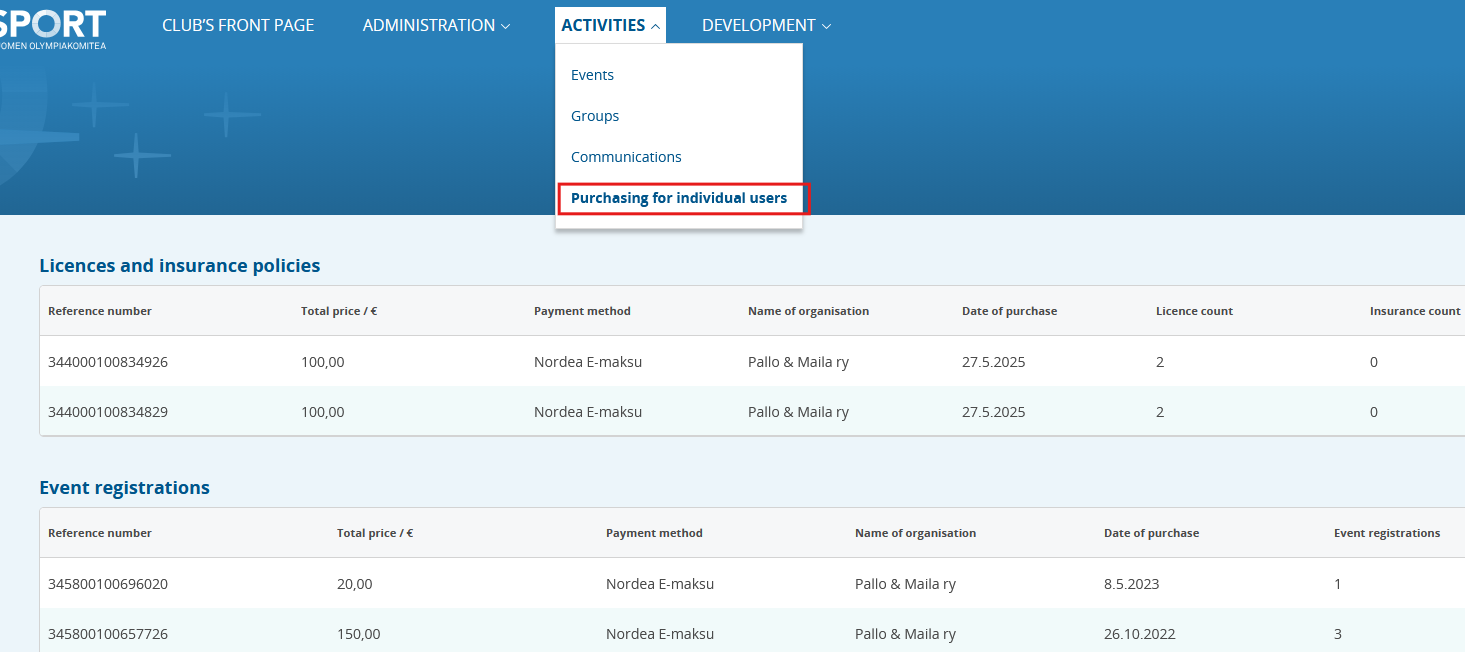
3. From the Operational tools menu, click Purchasing for individual users.
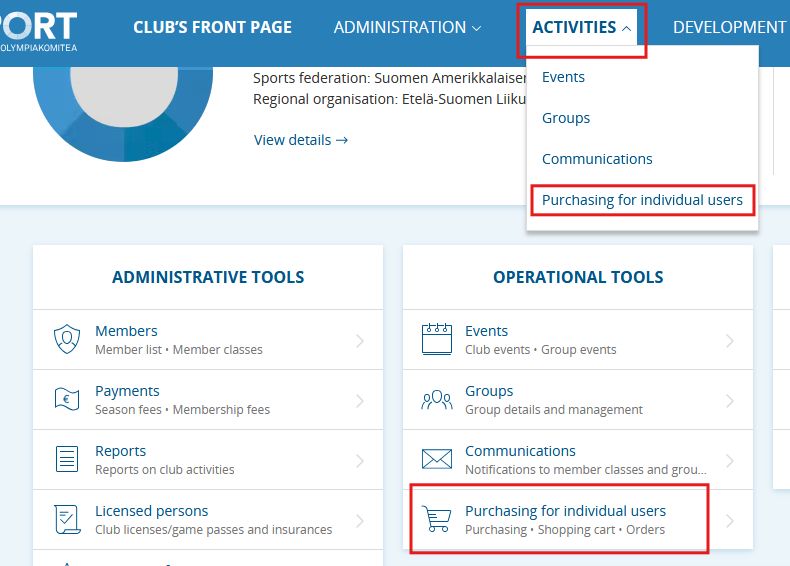
4. In a single‑sport club, choose To purchase.
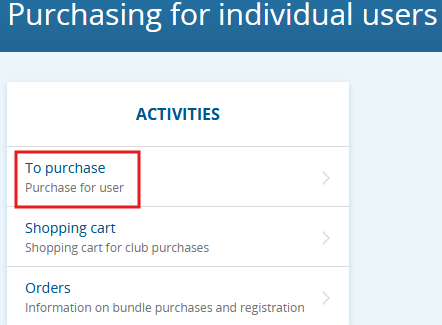
In multi‑sport clubs, select the sport division for whose users you are making the purchase, and then choose To purchase.
5. Select what you want to purchase for the users. A single bundle may include ONLY users with the same license and insurance selection.
6. Select the sport.
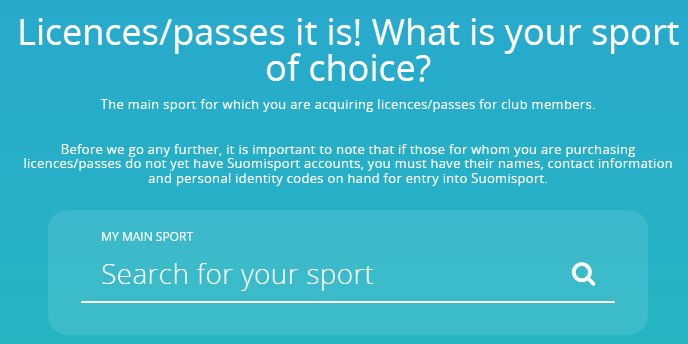
7. Select the license for all users in the bundle.
You can only bundle users who have the SAME choices regarding license and insurance.
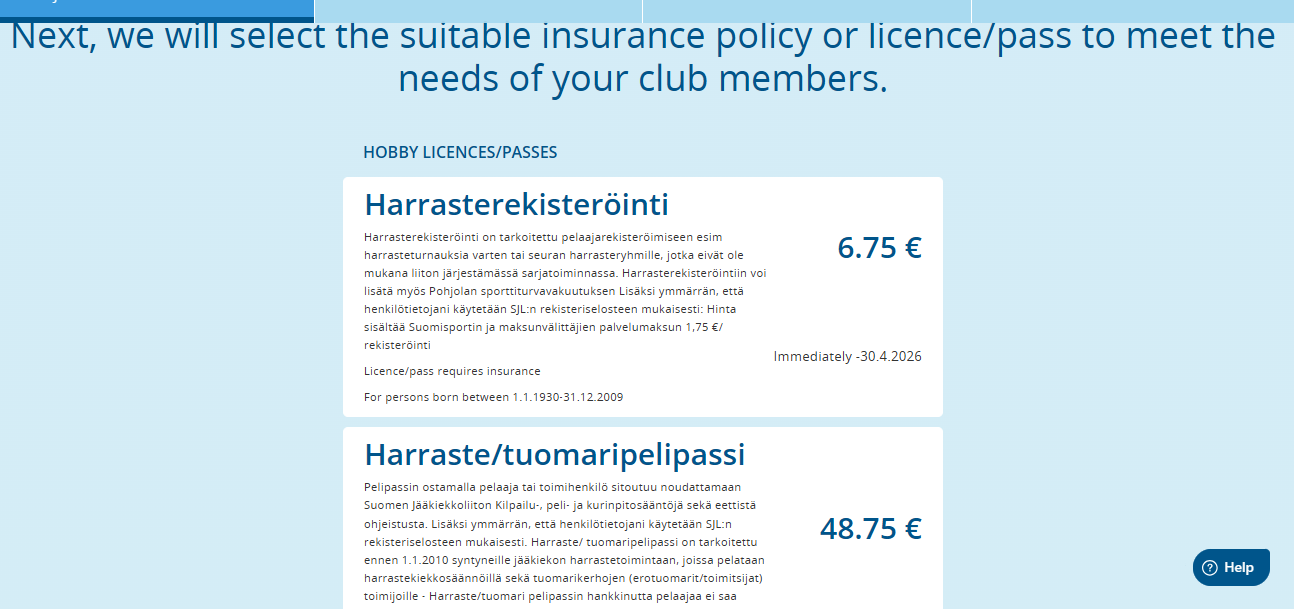
8. Select the insurance coverage for all participants in the bundle, or leave the insurance unselected.
You can only bundle participants who have the SAME choices regarding license and insurance.
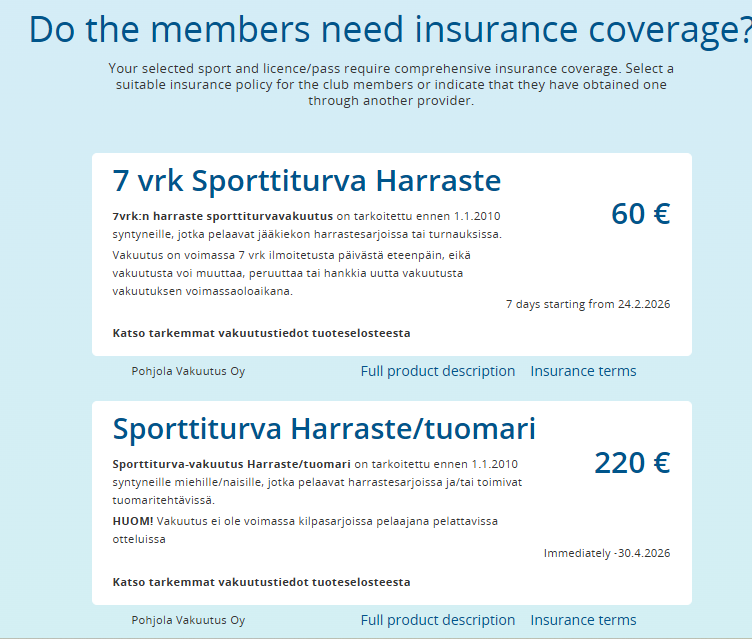
9. Add a users registered in Suomisport to the bundle.
- You can search for users previously linked to the club by name or Sport-ID.
- If the user is not linked to the club:
- You can search for people already in Suomisport via “Find users from Suomisport”. You must know the person’s Sport-ID and last name.
- You can also import users from Suomisport using the Import participants from Excel function.
You may use either the provided import template or any Excel file whose first columns match the template requirements: “Sport-ID” and “Last name”, such as an event’s registration Excel.
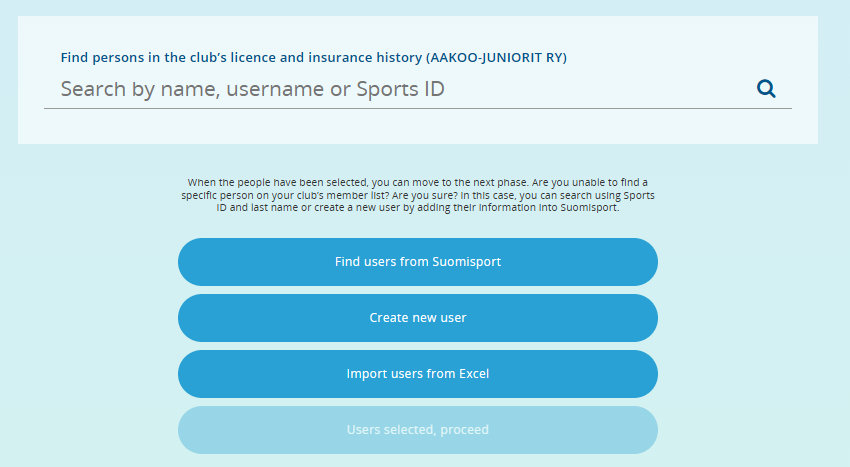
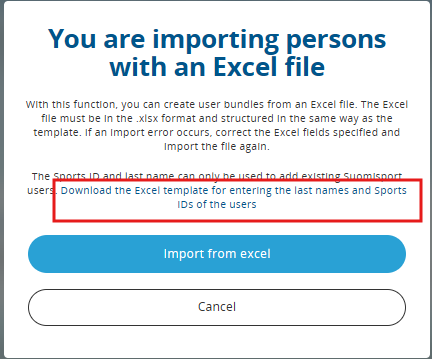
10. When the users have been added to the bundle, add the bundle to the club’s shopping cart, where e.g. the treasurer can proceed to make the payment. Once the bundle’s licenses have been paid, the payment details appear immediately in the participant’s profile.
11. All products purchased “with club details” and their receipts can be found after purchase in the "Orders" section of the service.
Was this article helpful?
That’s Great!
Thank you for your feedback
Sorry! We couldn't be helpful
Thank you for your feedback
Feedback sent
We appreciate your effort and will try to fix the article