This article explains how memberships can be managed, how to move/copy members from one membership class to another, and what to do when the season changes.
Changing the membership season
- Suomisport’s membership management is built according to the Associations Act – (Section 12) membership is created through the member candidate’s expression of will and the association’s decision to accept them as a member. Membership is lifelong unless the member states otherwise or is expelled from the association – Read more about this (in finnish)
- In the service, this means that membership classes are multi‑year, memberships do not end, and members do not automatically disappear from the membership list when the season ends, and membership is not tied to paying the membership fee.
- Memberships must therefore be maintained as new members join and old ones resign or are expelled from the club according to its rules.
- Each season, only a new membership fee is assigned to the membership class.
Removing members
- A member cannot remove themselves from a membership class. Only a club administrator can remove members. Members can be removed either from a membership class or directly from the "Membership list" page.
- Click the “menu button” next to the person and select “Remove”: image of the button used to remove a member.

- Note! When a member is removed, all unpaid membership fees assigned to them are also removed!
- When a member resigns or is expelled, the principles of the Associations Act should always be taken into account:
- A member may resign from the association at any time by notifying the board or its chairperson in writing. A member may also resign by announcing it at a meeting of the association for the minutes. The bylaws may define that the resignation becomes effective only after a certain period.
- The association may expel a member on grounds defined in its bylaws and under the general grounds of the Associations Act, if the member has failed to meet the obligations they committed to by joining, has significantly harmed the association through their actions inside or outside the association, or no longer meets the requirements of membership specified in law or the bylaws.
Transferring and copying members
You can transfer members to another membership class or copy members to another membership class or group. Note that the transfer function works only between membership classes.
- Click the Members tool on the club’s front page.
- Switch the view to membership classes by pressing “Membership classes”.
- Go to the membership class from which you want to move/copy members.
- Open the “Members” page and click “Transfer/copy members”.
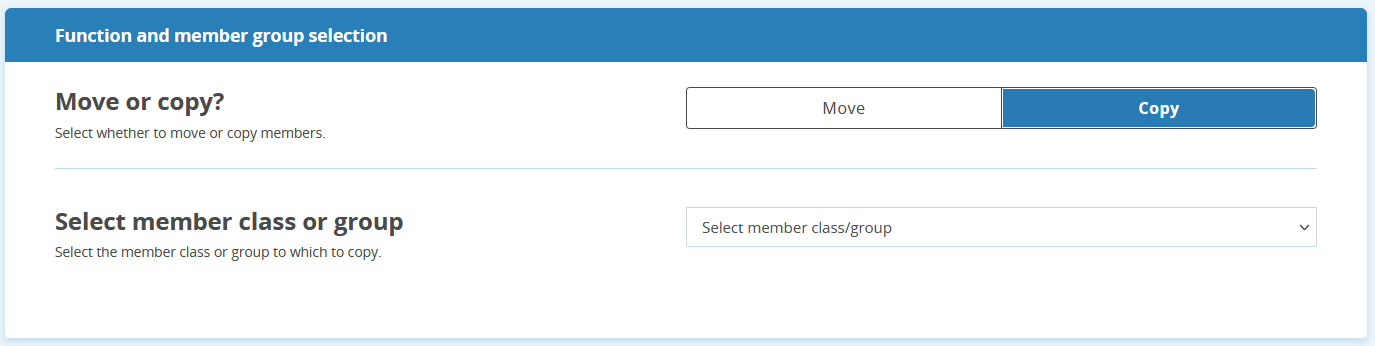
- Select Transfer if you want to move members between membership classes, or Copy if you want to copy members to classes or groups.
Image of the transfer/copy tool.
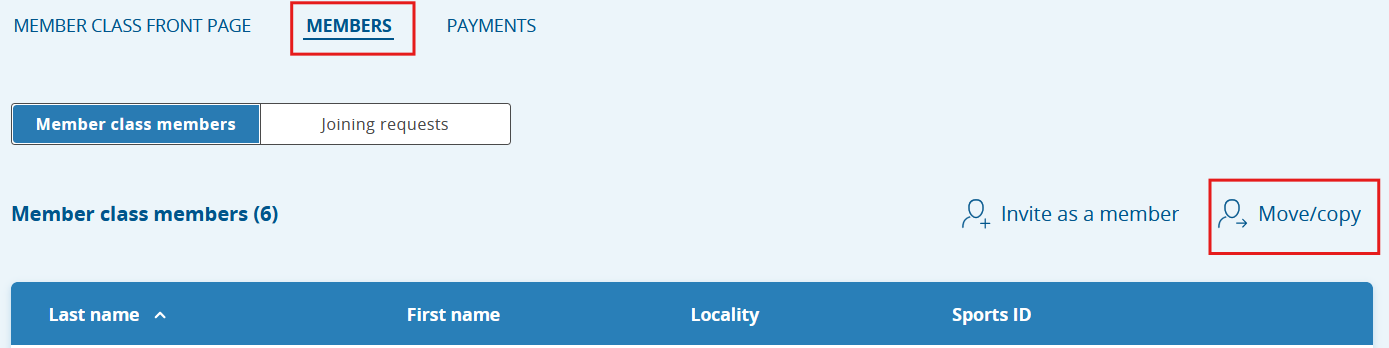
Image of the transfer/copy function.
Was this article helpful?
That’s Great!
Thank you for your feedback
Sorry! We couldn't be helpful
Thank you for your feedback
Feedback sent
We appreciate your effort and will try to fix the article