A club user can move members to another membership class, or copy members to another membership class or group.
How to move or copy members:
- From the club home page, click Members under Administration tools.
- Switch the view to member classes by clicking Member classes.
- Go to the that membersclass from which you want to move/copy members.
- Open the Members -tab and click the "Move/copy" members -button.
- Choose Move if you want to move members between membership classes, or Copy if you want to copy members to member classes or groups.
Note: When moving/copying, only the person is moved/copied—none of the person’s previously accumulated data is carried over.
Image: Move/Copy button
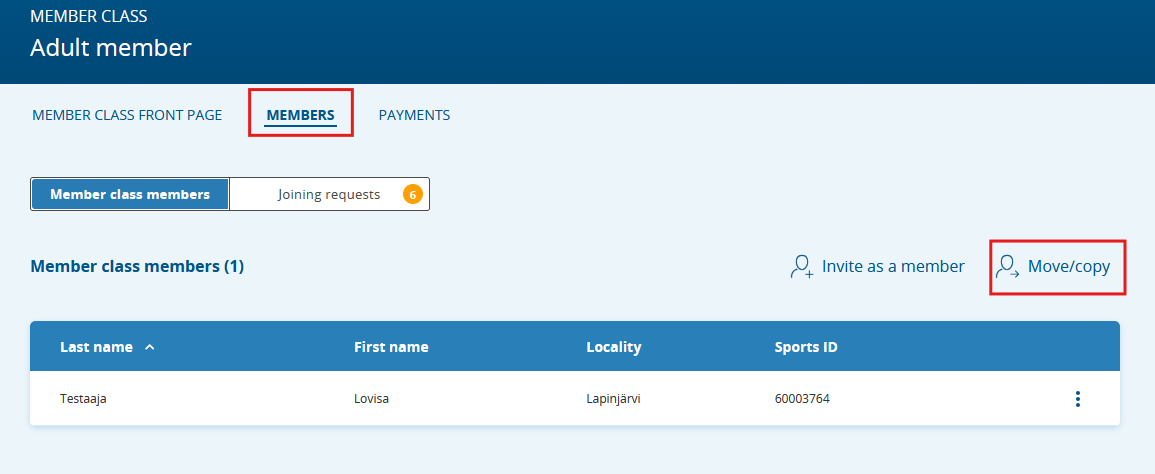
Image: Move/Copy page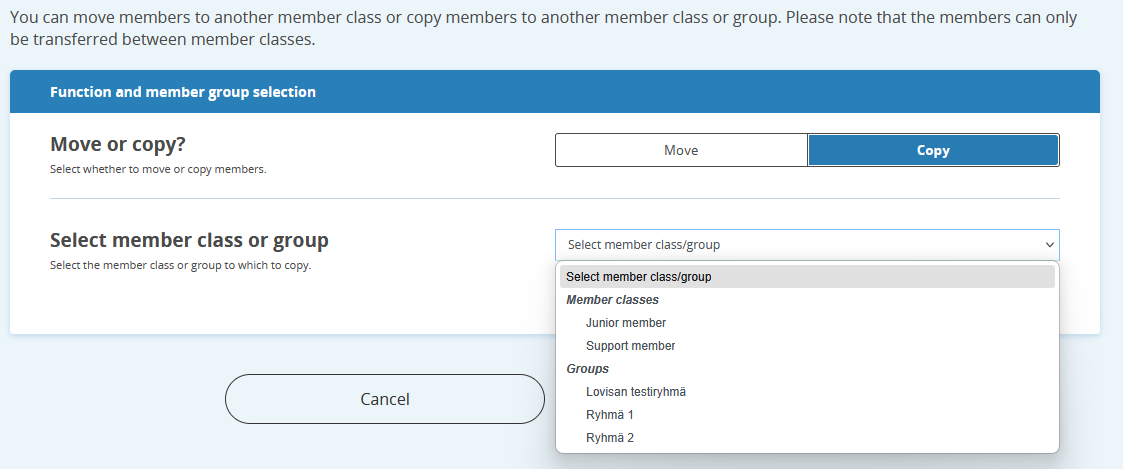
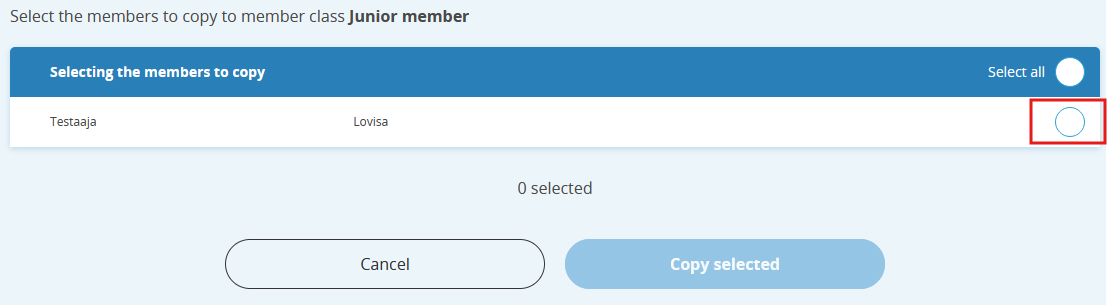
- Select the people you want to move/copy and click Move selected.
Image: Selecting people to move/copy
Was this article helpful?
That’s Great!
Thank you for your feedback
Sorry! We couldn't be helpful
Thank you for your feedback
Feedback sent
We appreciate your effort and will try to fix the article