This guide includes a video and step-by-step instructions for creating group season fees.
The Group Season Fee feature is a versatile tool for collecting a group’s/team’s season fees as well as other activity-related fees. Club users and group administrators can create and edit group season fees. Season fees are always created per group.
You can also ask Suomisport Customer Support for usage models and best practices!
How to create a season fee
- From the club home page, go to Groups under Activity tools.
- Open the desired group by clicking the group’s name.
- Go to the group’s Payments tab to create fees and click New season fee.
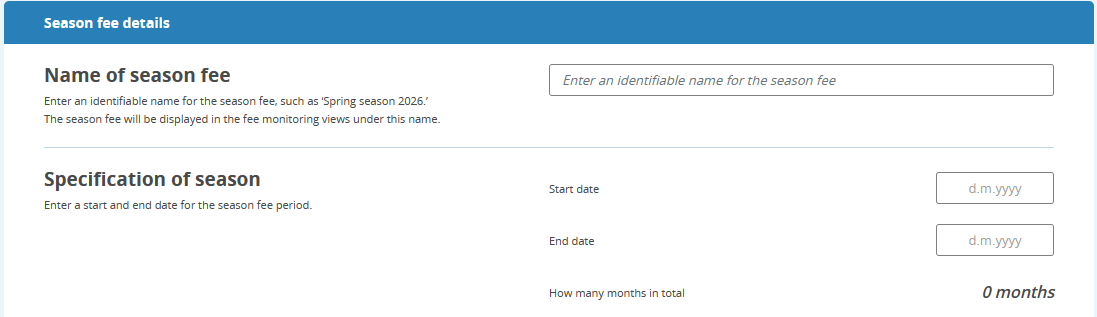
- Name the season and define the start and end of the fee period.
The fee period affects how fees can be assigned within the group.
You can assign fees in a group only to participants who were in the group during the fee period.
Image: Naming the season and defining the period
- Next, create a fee for the group by filling in the requested details.
If you want to collect/split the fee into multiple parts, create multiple fees within the same season.Note: You can create fees in advance even if no one has joined the group yet (e.g., at the start of the season).
Image: Creating a fee and the fields to complete
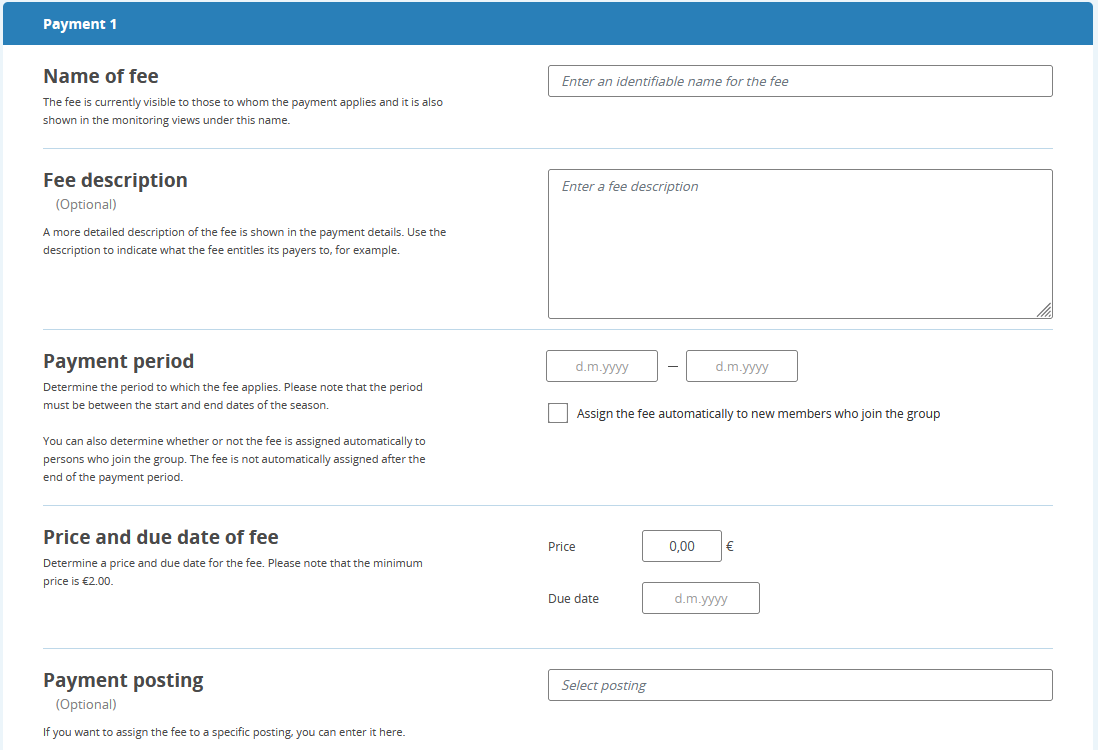
Fee details and descriptions:
- Fee name: Shown under this name in the Payments section of the participant’s and their guardian’s Suomisport accounts. Use a descriptive name.
- Fee description: Appears as additional information under the fee name in the Payments section of the participant’s and their guardian’s Suomisport accounts.
- Fee period:The fee applies to this period. If you create, for example, a monthly fee, set the period to one month.
- Season fees split into smaller periods are easier to edit and assign, e.g., for participants who join mid-season.
- You can choose to automatically assign the fee to people who join the group during the fee period.
- Fee amount and due date: The due date must fall within the period defined above. You can also choose to automatically assign the fee to people who join the group during the season.
- Fee account allocation (posting): Assigns the fee to a specific accounting code. If Suomisport is connected to an electronic financial management system, the fee can be posted accordingly. You can also enter the information manually—this appears in the settlement report.
- If you are creating multiple fees for the season, click + Add fee. “New fee using previous details”
Assigning fees
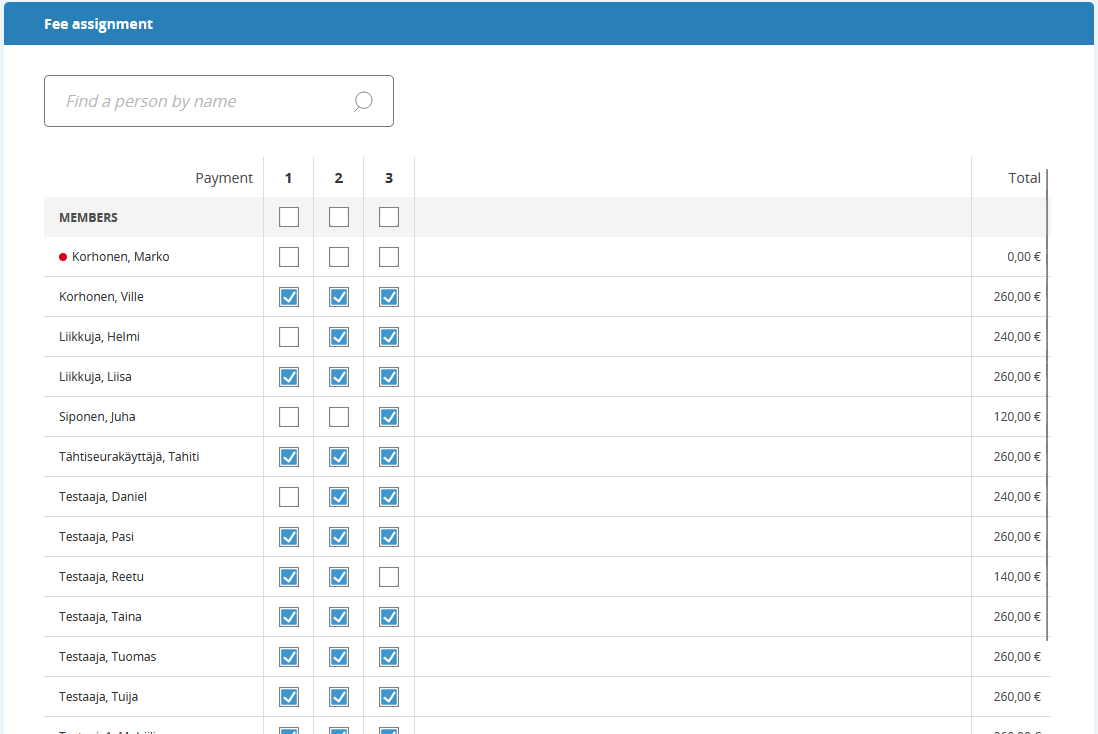
- Once you’ve created all season fees for the group, proceed to assign them to the desired people.
You can assign fees to everyone in the group at once by clicking the top checkbox, or individually by checking the box next to each person. A person who is not marked for the fee will not receive it.
Image: Fee assignment table for group members
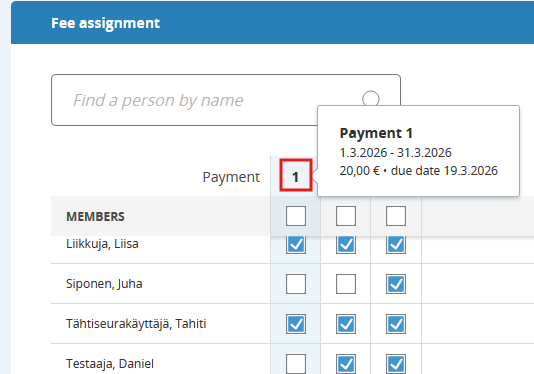
- If needed, you can view additional information about fees and participants by hovering over the person’s name or the fee number.
Image: Fee details
- Publish the fee, or save as draft to publish later.
- After publishing, the fees you assigned will immediately appear as payable for the selected people in their Suomisport accounts (Payments section). The person and their guardian(s) will receive a notification about the new club-assigned fee by email and in the Suomisport app.
- An automatic notification is sent to the mobile app and by email for overdue fees. Reminder messages are sent on the due date and every 14 days thereafter until the fee is paid.
- In the email notifications for a new fee and reminders, the contact email shown is the section email address (in single sport clubs the term is Activities) that your club has saved in Suomisport. Please verify the section email before assigning fees! You can find it by clicking “View details” on the club home page and selecting Section (Activities).
- Created season fees can be edited, reassigned, cancelled, or deleted, even after publication.
Examples of club season fees
EXAMPLE 1: One uniform fee for everyone for the entire season
Create a single fee whose period covers the entire season.
EXAMPLE 2: Two price tiers within the group (e.g., participants training three times per week vs. twice per week)
Create two fees and set the desired period and price for each. When creating multiple installments, it’s helpful to use the “copy previous fee details” function.
EXAMPLE 3: Monthly fees for the group
Create fees for the entire season with a period length of 1 month (for a 12‑month season, create 12 fees). Name each fee with the month for clarity. Set the amount and due date for each fee. Use the “copy previous fee” function to speed up creation.
Watch the tutorial video on creating season fees (in finnish)
Was this article helpful?
That’s Great!
Thank you for your feedback
Sorry! We couldn't be helpful
Thank you for your feedback
Feedback sent
We appreciate your effort and will try to fix the article